
Putting AI Hallucination to Work: Building an Exploratory Testing Agent
At the end of Scrum Day Nigeria 2026, I sat on the AI panel and was asked for some last words on AI and its impact on product delivery. My advice was simple: keep exploring the AI tools available, figure out what works, and learn from what doesn’t.
That is how I approach my own work, and it led me to an idea: an exploratory testing agent.
If you haven’t come across exploratory testing, Cem Kaner described it as “a style of software testing that emphasizes the personal freedom and responsibility of the individual tester to continually optimize the quality of his/her work by treating test-related learning, test design, test execution, and test result interpretation as mutually supportive activities that run in parallel throughout the project.” In other words: learning about the product and testing it at the same time.
I worked as a software tester for many years, and of everything the team did, exploratory testing was the part I enjoyed most. It was the part of the job where I got to play with the application and go beyond the scripted tests.
Anyone who uses AI tools like Claude knows they hallucinate. My hypothesis was that I could put that tendency to work: let the AI interrogate and explore a web application, then, based on what it finds, give it a set of heuristics to test the application with. Some of them will be familiar to any tester:
- Formats: invalid emails, dates and phone numbers; unicode and emoji (like “Zoë 🚀 测试”); leading and trailing spaces; apostrophes (O’Brien); HTML-like text such as
<b>bold</b>. - Flow disruption: pressing back after submitting, reloading mid-flow, double-clicking submit, opening a deep URL directly, abandoning a flow and coming back.
- State: empty states, one item versus many, editing then cancelling, combining sort, filter and paging.
- Layout: when the test involves UI, resizing to a phone screen (390×844) and checking a screenshot for overlap, clipping or controls you can’t reach. A text snapshot can’t show layout.
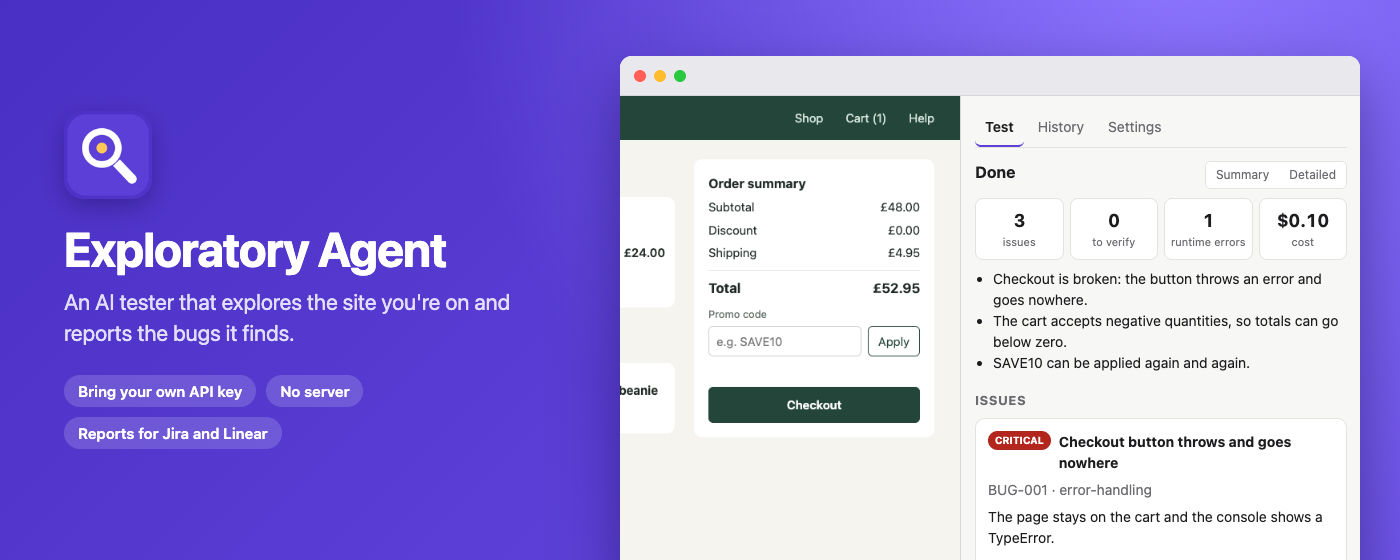
With Claude Code’s help, I built the first version of Exploratory Agent in half a day, as a command-line tool (CLI): github.com/samueladesoga/exploratory-agent. A few days later I wanted non-technical users, such as founders, to be able to use it too, so I extended it into a Chrome extension: Exploratory Agent on the Chrome Web Store.
I’ve pointed it at several applications I’ve built over the years, and it found defects that humans had missed. On scrumday.ng, it found data that didn’t match from one part of a page to another. On gigledger.co.uk, it found a button that didn’t lead users to any meaningful action.
It also produces a report you can hand straight to an AI coding tool; if that tool can act on your codebase, it can fix the defects the report describes.
The agent can report bugs that aren’t real, and I haven’t measured how often. That’s the flip side of relying on a model’s imagination. To keep it in check, the agent tries to reproduce each finding once from a clean start, and anything low-confidence, unreproduced or possibly intended is flagged “Needs verification.” Every finding comes with steps to replay it, expected versus actual behaviour, and a screenshot, so you can check it quickly. Treat flagged items as leads for a human tester, not confirmed bugs. The agent also only knows what correct behaviour looks like from the description you give it, so a thin description produces more false alarms.
The agent isn’t meant to replace testing as a human skill. It’s meant to complement what your product team already does.
Before you try it
- Cost: it isn’t a paid service; you bring your own Anthropic API key. A typical run, about three sessions of 40 steps each, costs under $4.
- Your data: what the agent sees on the page (text, URLs, screenshots) goes to Anthropic’s API and nowhere else. There’s no analytics or tracking. Run history, reports and your API key stay in your browser, and the key is stored unencrypted there. Anything shown on screen is sent, including real customer data if the page displays it.
- Where to run it: use a test or staging environment with test accounts, and only on sites you have permission to test. Not on live production. The extension’s read-only mode, on by default, blocks every request that would change data; in the CLI it’s off by default. With it off, the agent will submit forms and enter junk data, which on production means real duplicate orders, real emails and polluted records.
I see it eventually running inside an automated AI workflow, so that as features are built, Exploratory Agent runs alongside the rest of your tests. If you can’t set that up yet, I’d still like you to try it. If you’re a developer, start with the CLI; if you’re a founder, install the Chrome extension. Then tell me what it caught, or missed, in the comments on this post or by email at samueladesoga@gmail.com.
You Might Also Like

Stumbled on Chrome Net Internal
A quick pointer to chrome://net-internals as a useful, underused resource for testers debugging web applications.
November 11, 2011